WHAT'S NEW?
Loading...
Showing posts with label Educational. Show all posts
highsoft

ඔන්න යලුවනේ මම අද  ගෙනවේ  සුපිරි භාණ්ඩයක්  මේකෙන් පුලුවන් සුපිරිම වැඩ දාලා වීඩියෝ එඩිට් කරන්න සමහර අපේ යලූවෝ නම් මේක ගැන දැනටමත් දන්නවා ඇති. හරි කමක් නෑ දන්නේ නැති අයට මන් කියන්නම්කෝ මේක තමයි Adobe After Effects CC කියලා කියන්නේ.මෙකෙන් ගොඩක් ෆිල්ම් එහෙමත් එඩිට් කරනවා.ඉස්සලාම මේක ඩවුන්ලොර්ඩ් කරගෙන ඉන්නකෝ ඉලග දවසෙන් මම කියලා දෙන්නම් කොහොමද මේකෙන් වැඩ දාන්නේ කියලා.

මෙකෙන් නිල වෙබ් අඩවියෙන් බා ගන්න 

මෙකෙන් ටොරන්ට් වලින් බා ගන්න 
අපිට Like එකක් දාන්න අමතක කරන්න එපා.

ඔන්න මන් ගානේ තවත් වැදගත් ලිපියක්.. කියවලම බලන්න වැදගත් දෙයක්...

මොකක්ද මේ අධිමානසික විද්‍යාව. ?

එකෙන් වෙන්න මොනවද. ?
එකේ තියෙන වැසි මොනවද.?
එක ලබා ගත්විට අපිට සන්නිවේදනය කල හැකි වැසි මොනවද ?

මේ සියල්ලටම පිළිතුරු මෙන්න... අනිවාර්යෙන්ම බලන්න. හේතුව බොහෝ ක්ෂේත්‍ර කරුණු මේකෙන් අනාවරණය වෙනවා.. ඔබේ දැනුමට බොහෝ උපකාරී වේ..


එහෙනම් මම ගියා මගේ සයිට් එක පැත්තෙත් ඇවිත් යන්න... ලංකාවේ අපේ අදහස් 


අපිට Like එකක් දාන්න අමතක කරන්න එපා.
 http://www.ssdtutorials.com/resources/content/images/tutorials/embed-google-maps/google-map.jpg
හොදයි යාලුවනේ අපි අද බලමු Google Maps වෙබ් අඩවියකට හෝ බ්ලොග් අඩවියකට ඇතුලත් කර ගන්නේ කෙසේද කියල. මේක කියල දෙන්න කිවුවෙත් අපේ බ්ලොග් එක කියවන කෙනෙක්මයි. ඉතින් ඔන්න අපි එයාගෙ යෝජනාව ඉටු කරනව.

ඉතින් අපේ  ලක්ෂාන්  සහෝදරය ඔයාලට කියල දුන්නනෙ අපේ place එකක් ගුගල් මැප් එකට ඇතුල් කරන ආකාරය. ඉතින් මන් දැන් කියල දෙන්නෙ ඒ හදා ගත් Map එකක් වෙබ් අඩවියකට හෝ බ්ලොග් අඩවියකට ඇතුලත් කරන විදිහයි.ඔයාල දැකල ඇති මේ වගේ maps වෙබ් අඩවිවල  හෝ බ්ලොග් අඩවිවල තියන්ව.

ඉතින් මුලින්ම ඔයාල මේ Link එකට යන්න. https://maps.google.lk/maps

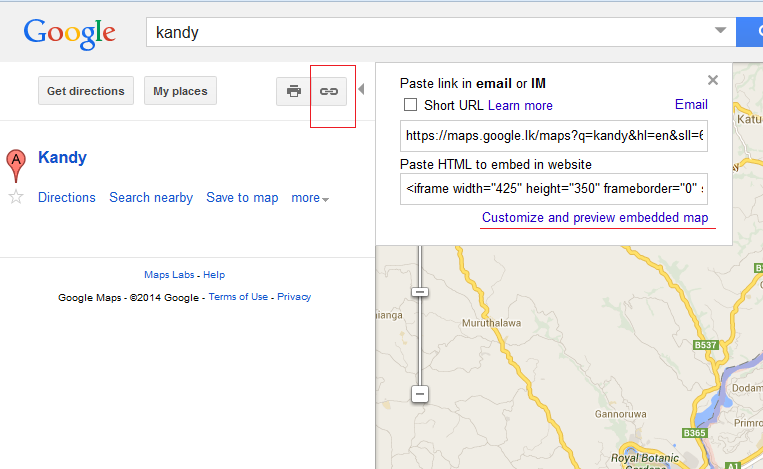
ඊට පස්සෙ ඔයාල හදා ගත්තු map එකට ගිහින් හෝ ඔයාලට ඕනෙ තැන Search Bar එකේ Type කරගන්න. පසුව මහත මන් දක්වා ඇති Link යන්න click කරන්න.

එවිට රූපයේ පරිදි පොඩි window එකක් පෙනේවි. ඉහි "Paste HTML to embed in website"යන්නෙහි ඇති code එක යොදාගෙන ඔබගේ Google Maps වෙබ් අඩවියකට හෝ බ්ලොග් අඩවියකට ඇතුලත් කර ගත හැකිය. නැතහොත් එහි "Customize and preview embedded map" යන්නෙන් ගොස් ඔබට තවත් වෙනස් කම් සිදු කර ගත් හැකියි.

පහත දැක්වෙන්නේ එසේ කරගත් Google Map එකකි. මෙය ඔබට ප්‍රයෝජනවත් වූවානම් comment කරන්න අමතක කරන්න එපා.

View Larger Map
අපිට Like එකක් දාන්න අමතක කරන්න එපා.

හොදයි මන් අද කියල දෙන්න යන්නෙ HTML  වලින් බෞද්ධ කොඩියක් නිර්මාණය කරන ආකාරයයි. සංක සදමාල් සොයුරාගෙ Web Designing පාඩම් මාලාවට අමතරවයි මේ අමතර දේවල් අපි ඔයාලට කියල දෙන්න.  ඒ නිසා එම පාඩම් මාලව සමගහත් රැදී සිටින්න.

මේක video tutorial එකක් නිසා ඔයාලට හොදට තේරෙයි. මෙතැන් සිට video tutorial ලබා දීමටත් IT දැනුම බෙදාගමු අපි බලාපොරොත්තු වෙනව. ඉතින් මෙම පාඩමෙන් ඔයාලට HTML Tables පිළිබඳව හොද අවබෝදයක් ලැබෙනව.  මෙයින් ලැබෙන්නේ පහත ආකාරයේ output එකකි. ( Image එකක් නෙවෙයි මේක)


පහත දැක්වෙන්නෙ මෙහි කේත සටහනයි. Video එකෙන් නොතේරෙන දේවල් පහත කේත සටහනින් ඔයාලට බලාගන්න පුළුවන්.

<html>
<head>
<title>Create Flag</title>
<!--Copyright 2013 www.itdanumabedagamu.blogspot.com-->
<!--Developed @ </HaRSha>-->
</head>
<body>
<table border="0" align="center">
<tr>
<td rowspan="6" width="80" bgcolor="blue"></td>
<td rowspan="6" width="80" bgcolor="yellow"></td>
<td rowspan="6" width="80" bgcolor="red"></td>
<td rowspan="6" width="80"></td>
<td rowspan="6" width="80" bgcolor="orange"></td>
</tr>
<tr>
<td width="100" height="50" bgcolor="blue"></td>
</tr>
<tr>
<td width="100" height="50" bgcolor="yellow"></td>
</tr>
<tr>
<td width="100" height="50" bgcolor="red"></td>
</tr>
<tr>
<td width="100" height="50"></td>
</tr>
<tr>
<td width="100" height="50" bgcolor="orange"></td>
</tr>
</table>
<h1 align="center">Happy Wesak</h1>
<h2 align="center">www.itdanumabedagamu.blogspot.com</h2>
<h3 align="center">Thank you for join us</h3>
<h4 align="center">I'm Harsha Samaranayake</h4>
</body>
</html>


අපිට Like එකක් දාන්න අමතක කරන්න එපා.

එක වෙබ් බ්‍රව්සර් කෙන් FACEBOOK එකව්න්ට් කීපයකට එක වර ඇතුල් වන්නේ මෙහෙමයි.

මෙය දන්නා අයත් ඇති සමහරව්ට නොදන්නා අයත් ඇතැයි මා සිතමි. මා දන්නා විදයට ගොඩාක් යාළුවන්ට Facebook ගිණුම් 2, 3, ක් තියනවා මේ ගැන නොදන්නා අය කරන්නේ විවිද වෙබ් බ්‍රව්සේර් පාවිච්චි කරන එකයි වෙවැනි යට මේ ලිපිය ගොඩාක් ප්‍රයෝජනවත් වෙයි කියා මා සිතනවා. හරි දැන් කතා කළා එති අපි දැන් වැඩේට බහිමු.
 
*මුලිම්ම Google Chrome වෙබ් බ්‍රව්සර් එක ඕපන් කරගන්න 
Address bar එකේ chrome://settings/ ලෙස ටයිප් කර  Enter කරන්න.


ඉන් පසු පහත චායා රුපයේ එති ආකාරයට add new user යන්න clik කරන්න.....


*ඉන්පසු ඔබට කැමති නමක් , එය සදහා icon එකක් ලබාදී  create යන්න clik කරන්න  

ඒවිදියට ඔබට අවශ්‍ය තරම් users හදා ගන්න පුළුවනි..මෙමගින් ඔබට fb ගිණුම් විතරක් නොවේ youtube, twitter, gmail, ymail, live, වාගේ විවිද ගිණුම් වලින් ඔබට අන්තර්ජාලයට පිවිස්ය හැක, මෙම ලිපිය ඔබට ප්‍රයෝජනයක් වූවානම් යාළුවන්ටත් බලන්න මෙය ෂෙයාර් කරන්න  
 
අපිට Like එකක් දාන්න අමතක කරන්න එපා.
 http://www.onlc.com/graphics/Microsoft/Access-2013-logo-icon.gif
MS Access 2013 මුල සිට ඉගෙන ගන්න Tutorial සෙට් එකක් අරගෙනයි මන් අද ආවෙ. ඉතින් මුලු Office Package එකේම Tutorialදෙන්න මන් බලාපොරොත්තු වෙනව ඉදිරි ලිපි වලින්. අපේ කලින් ලිපියකින් MS Word හා Exel 2013 Tutorial හා MS PowerPoint 2013 මුල සිට ඉගෙන ගන්න Tutorial සෙට් එකක් දුන්න. හැමදාම IT දැනුම බෙදාගමු සමග රැදී සිටින ඔබට ස්තූතියි.

Training courses for Access 2013

Beginner
Design and build tables for a database (Access basics, part 1)
If you're new to Access, start here. This course explains key concepts and terms, the first steps in database design, and how to build tables.
Download | Watch online
Create table relationships (Access basics, part 2)
Learn how to create table relationships, a key part of any database. This course covers the types of relationships and how to build each one.
Download | Watch online
Create your first Access 2013 database
Learn how to create an Access 2013 database in just minutes by using a template. Access gives you templates that run on your computer or in the cloud.
Download | Watch online
Introduction to queries (Access basics, part 3)
Learn how to create queries in Access 2013. Course covers the types of queries, creating Select queries, criteria, joins, and intermediate tables
Download | Watch online


Intermediate
Dealing with read-only queries
Can't change the data returned by a query? This course explains the most common causes and solutions, and provides links to information about other ways to deal with the problem.
Download | Watch online
Make the switch to Access 2013
Get started switching from Access 2003 to Access 2013. This course shows you how to create and manage new files, use files from previous version, use the Navigation pane and the ribbon, and create Access Apps, databases that run on the web.
Download | Watch online
Stop a query from asking for input
To make a parameter query stop asking for input, you remove all parameters, or fix problems (usually typos in field names) in expressions.
Download | Watch online
Use criteria in your Access 2013 queries
Learn how to use criteria to filter your Access data. This course covers adding criteria to queries, using AND and OR logic, logical operators such as IN and BETWEEN, and how to use wildcards. You need a basic understanding of queries to complete this course.
Download | Watch online
Use parameter queries to filter query results
Learn how to add parameters to your queries so they ask for your input, such as a date or a name, before they run. Parameters are a powerful way to filter your query results.
Download | Watch online
Use Update queries to change data in Access 2013
Learn how to build update queries that change data safely. Update queries can be a fast way to change a lot of existing data in one or more tables.
Download | Watch online
Using date criteria in queries
Learn how to use date criteria in your queries. This course shows the basics, plus how to use calculated fields and filter for part of a date value, as well as how to use the DateDiff and DateAdd functions to subtract and add date values. You need to be familiar with Access queries to complete this course.
Download | Watch online
අපිට Like එකක් දාන්න අමතක කරන්න එපා.

අපි අද බලමු කොහොමද mp3 ඕඩියෝ සින්දුවක කට හද ලේසියෙම්ම අයින් කරගන්නේ කියලා මම මේ ගැන පැහැදිලි කරන්න වීඩියෝ එකක් හැදුවා බලන්නකෝ කොහොද මේ වැඩේ කරන්නේ කියලා.

*අහා එක දෙයක් කියන්න ඕනා මේ වීඩියෝ එකකේ සද්දේ පොඩ්ඩක් අව්ල්

http://blog.kissmetrics.com/wp-content/uploads/2011/06/facebook-like-send-button.jpg
අන්තර්ජාලය භාවිතා කරන ඔබ දැකල ඇති Send කියන Button එකක්. ඒත් ගොඩක් අය දන් නෑ ඒකෙන් වෙන දේ. ඉතින් අපි අද බලමු මේ Send Button එකෙන් කරන්න පුළුවන් දේවල්. මුලින්ම පොඩ්ඩක් පහල තියෙන අපේ Send Button එක Click කරල බලන්න.

ඉතින් දැන් පොඩි ඇවබෝදයක් ඇති ඒ ගැන.ඉතින් මූලිකවම මෙය බාවිතා වෙන්නෙ Facebook Page එකක්තවත් කාගෙ හරි Timeline එක්ක හෝ Group එකක Post කිරීමට. මෙහි To යන ස්ථානයේ Post කළ යුතු පුද්ගලයාගේ හෝ Group එකේ නම සදහන් කල හැක. එකවර කිහිප දෙනෙකුට මෙන්ම සෑම group එකක් වුවද මෙම පොස්ට් එක පල කල හැක. තවද මෙහි Message යන්නෙහි ඔබට අවශ්‍ය දෙයක් සටහන් කිරීමටද පුළුවන්. මන් හිතනව ඔබ අද නොදන්නා දෙයක් ඉගෙන ගත්තා කියල. ඉතින් එහෙම අළුත් යමක් ඉගෙන ගත් අය comment කරන් නැතුව යන්නත් එපා.

අපිට Like එකක් දාන්න අමතක කරන්න එපා.
http://www.computer-troubleshooting.com/wp-content/uploads/2010/01/cisco-packet-tracer.jpg 

Networking ඉගෙන ගන්න කියාපු බඩ්ඩක් අරගෙනයි මන් අද ආවෙ. Networking ඉගෙන ගන්න ඔයාලට ඒව ප්‍රායෝගිකකව කරල අලන්න ඕනෙ වෙනවනෙ. ඉතින් හැමෝටම ඒකට අවස්තාවක් ලැබෙන්නෙ නෑනෙ. මොකද ඒවට අවශ්‍ය උපකරන අපි ලග නෑනෙ. ඉතිම් මන් අද  ගෙනාවෙ ඔයාලට ඇත්තටම Network එකක් හදනව වගෙ හදන්න පුලුවන් software එකක්. ඒ කියන්නෙ ඔයාල ප්‍රායෝගිකව Network එකක් ගහනව වගේ මේකෙන් සෑ මදෙයක්ම කරල ඉගෙන ගන්න පුලුවන්. මේකෙ Network කියන Subject එකේ ගොඩක් gගැඹුරුදේවල් පවා කරල බලලම ඉගෙන ගන්න පුලුවන්. කොටින්ම කිව්වොත් Router Configuration පවා මේකෙන් කරන්න පුළුවන්. එවිට ලැබෙන්නේ සැබෑවටම  Router Configuration Interface එකකි. ඉතින්m අන් මේ කිව්වෙ පොඩි දෙයක් විතරයි. ඔයාලත් බා ගෙනම බලන්නකෝ.


image
(Size: 145.48 MB)  


අපිට Like එකක් දාන්න අමතක කරන්න එපා.

http://www.nag.co.za/wp-content/uploads/2012/05/Laptop-buyers-guides-600-x-272.jpg 

 
                                    Buying a Laptop computer could be a daunting task, Considering how much the laptop has improved over the past couple years, it's no wonder that so many people are considering buying a laptop, or have already done so.

There are several things to consider when buying a laptop as there is more variety available when it comes to laptops than there is with desktop computers.  This article provides 7 simple tips you should ask yourself before making your laptop investment.

1. The first thing to do is determine what you need the laptop for. would it be used for entertainment, work, email checking and surfing the internet, graphics design, programming etc.

2. One Size fits All: moving from home to work, you should consider checking the size of the laptop . Most laptops weigh around seven pounds while laptops with smaller display, typically 12.1 inch weigh less than four pounds with features such as DVDROM not available.

3. Today, when many people think laptop, they think “wireless”.  No doubt people want to make sure that their laptop computer will be able to access the Internet with a wireless connection.  Many try to account for this by ensuring that their laptop has potential upgrade options, such as room for an expandable PC card or a USB port.  However, since so many laptop users are looking for wireless connections, many of today’s laptops come pre-wired for wireless Internet.  All you need to do is activate your wireless Internet service, and your laptop will take it from there. So depending on your needs, choose your laptop whether it is capable of expanding or if it is already configured for wireless Internet.

4. Processing Power: You should review the Minimum System Requirement for most of the applications you would be working with. Some programs require a very high CPU and Memory. A laptop of 2.40 GHz or higher and a RAM size of 2GB would run most of the programs and help in multitasking.

5. Check for Ports:
Peripheral equipment will be connected to your laptop through USB ports.  You will make your life much less complicated by ensuring that your laptop has adequate ports.  Connecting equipment such as printers, scanners, and digital cameras will be much simpler if you have the ports readily available. 

6. Power On The Go: Because of the mobility of a laptop, you should consider the battery backup. You want to get a laptop with a battery that last about 2-4 hours without electricity.

7.  Finally, when buying a laptop, beware that you do not overspend.  First create your budget stick to it.  When you think that you have found the laptop that you want to purchase, then go for it. Do not forget to check for warranty as well as after sales support.

 http://i.i.cbsi.com/cnwk.1d/i/tim/2012/02/08/laptops2011dan01_620x350.jpg 


 http://s22.postimg.org/v41b90zep/web.jpg
සංක සදමාල්ගේ සිංහලෙන් වෙබ් ඩිසයිනින් තෙවන කොටස තමා මේ. සියලුම ලිපි නැරබීමට මෙම link එකෙන් යන්න. මෙච්චර වටින දේවල් දීලත් comment කරන්න අමතක කරන්න එපා.
http://adf.ly/ZrQFI
වෙබ් ඩිසයිනින් සිංහල පාඩම් මාලාව 3 කොටස
අපිට Like එකක් දාන්න අමතක කරන්න එපා.

 http://blog.laptopmag.com/wpress/wp-content/uploads/2013/05/JollaMain.jpg
  
                                                  Jolla Mobile’s first smartphones running Sailfish OS will go on sale in the company’s home country of Finland later this month. Sailfish is based on the discontinued MeeGo Linux operating system which Nokia abandoned in the move to Windows Phone, and key executives at Jolla actually came from Nokia.
So the company and its software have a pretty strong pedigree and I wouldn’t be surprised if the Linux-based phone proves at least moderately popular with fans of open source software and folks in Finland looking for a home-grown alternative to Android, iOS, and Windows Phone. As many as 50,000 people may have already pre-ordered a phone for a bit over $500.

What remains to be seen is whether Sailfish has what it takes to be a major player in the global market. There’s no word on when we’ll see an international launch.
Jolla Other Half 

                                Sailfish is a unique operating system with its own version of a lock screen, home screen, notifications, and multi-tasking. But Jolla also enabled support for Android apps, which allows users to tap into the thousands of third-party apps already available for Google’s mobile operating system.

Jolla has partnered with Russian search engine Yandex to pre-load Sailfish phones with Yandex.Store, an Android app store with access to over 85,000 apps and games.
But the company is asking developers to create native apps for Sailfish and submit them for inclusion in an official app store.

Jolla is a relatively new, relatively small company — and probably doesn’t need to sell as many phones as Samsung in order to survive. But Jolla’s Sailfish platform isn’t the only competitor for fifth place in the smartphone space (after Android, iOS, Windows Phone and BlackBerry).

Ubuntu Touch, Firefox OS, and even the Samsung-backed Tizen software are also making the rounds, not to mention Android forks such as Amazon’s Kindle Fire OS or Alibaba’s Aliyan OS.

  https://pbs.twimg.com/media/BURdfQ2CIAAEmuu.jpg:large.http://icdn6.digitaltrends.com/image/jolla-sailfish-os-android-970x0.jpg.
 http://blog.laptopmag.com/wpress/wp-content/uploads/2013/04/Jolla-Sailfish-OS.jpg .http://gordonkelly.com/wp-content/uploads/2013/01/Tizen.png.


Launching video
http://www.onlc.com/graphics/Microsoft/PowerPoint-2013-logo-icon.gif

MS PowerPoint 2013 මුල සිට ඉගෙන ගන්න Tutorial සෙට් එකක් අරගෙනයි මන් අද ආවෙ. ඉතින් මුලු Office Package එකේම Tutorialදෙන්න මන් බලාපොරොත්තු වෙනව ඉදිරි ලිපි වලින්. අපේ කලින් ලිපියකින් MS Word හා Exel 2013 Tutorial සෙට් එකක් දුන්න. හැමදාම IT දැනුම බෙදාගමු සමග රැදී සිටින ඔබට ස්තූතියි.

Training courses for PowerPoint 2013

Beginner
Apply and change a theme
You created slides for your presentation, and now you’re thinking about slide design: the background design, font styles, colors, and layouts. You want the slides to have a bit more visual pop. How do you get that? With themes. Themes provide a complete slide design for your presentation.
Download | Watch online

Create your first PowerPoint 2013 presentation
Watch these videos to learn how to use PowerPoint 2013. Get started with the new version to see how to do everyday tasks.
Download | Watch online

Print slides, notes, or handouts
You’ve finished creating your presentation, and now you want to print handouts for your audience. PowerPoint gives you several choices: you can print full page slides, multiple slides per page, or slides with your presenter notes or room for the audience to take notes next to the slides. If you want richer formatting, you can use Word to edit content, apply styles, and then print.
Download | Watch online

Use Presenter view
Watch these videos to learn how to use Presenter view in PowerPoint 2013 to separate what you see from what your audience sees.
Download | Watch online
Intermediate
Backgrounds in PowerPoint
These videos show you how to add color, textures, pictures, or remove them from a PowerPoint slide or deck. We’ll show how to customize your colors and some design tips so the background doesn’t overwhelm your presentation. Also, a bit about Master Slides that may help your add or remove a watermark or logo.
Download | Watch online

Make the switch to PowerPoint 2013
Watch these videos to make the switch to PowerPoint 2013. Get started with the new version to see how to do everyday tasks.
Download | Watch online

Working with watermarks
It's known as a watermark — some sort of background image that can appear throughout a PowerPoint presentation. Like a company logo, for example. Use watermarks for identification or branding, for security or legal purposes, or simply as a design or decorative element.
Download | Watch online

Work with handout masters
When you want to print handouts in PowerPoint, you can choose most of the handout settings in Print view. But for a few handout settings, you need to change the handout master, a page that contains the master layout and properties for handouts.
Download | Watch online
Advanced
Add bullets to text
Format your text as bullets; change font size, line spacing, and indentation; and change list formatting on the slide master to change all of your slides at once.
Download | Watch online

Add headers and footers to a presentation
When we talk about headers and footers in a presentation, we mean the small details near the top or bottom of your slides. Like the slide number, a text footer, and the date. Headers and footers appear in various positions, depending on the theme and slide layout. You choose which headers and footers to show and what the text footer says. Take this course to learn how to add and customize them.
Download | Watch onlilne

Add sound effects to an animation
Add sound effects to your presentation in Microsoft Office PowerPoint 2013. Set them to start and stop when you want them to, and add multiple sounds to animations.
Download | Watch online

Animate pictures, clip art, text, and other objects
You can animate just about anything in PowerPoint 2013. It's easy to do. Animate text, pictures, charts, shapes, and more. And you can create some pretty amazing presentations with lots of motion path animations.
Download | Watch online

Create a template from a presentation
You want to use your presentation as a template, or master, that you and others can update and change as necessary. You’d keep the formatting and text you always want in the presentation, and where new content needs to be added, you could use placeholder text as a guideline for authors. You could include formatting, too, such as the frame style on a picture placeholder, to save other authors’ time and help ensure consistency. Just save your presentation as a template to do all this and more.
Download | Watch online

Design motion paths
A motion path is an animation effect that moves an item, like a picture, on a line that you specify in PowerPoint 2013. Take this course to learn how to create them.
Download | Watch online

Trigger an animation effect
You can trigger an animation effect to begin playing at the start of, or sometime during, an audio or video clip. You can also trigger an animation effect to start when you click the shape or other object that has the animation applied.
Download | Watch online

Use slide masters to customize a presentation
Slide masters are designed to help you create great looking presentations in less time, without a lot of effort. When you want all your slides to contain the same fonts and images (such as logos), make those changes to the slide master.
Download | Watch online

අපිට Like එකක් දාන්න අමතක කරන්න එපා.
 http://www.onlc.com/graphics/Microsoft/Excel-2013-logo-icon.gif
MS Excel 2013 මුල සිට ඉගෙන ගන්න Tutorial සෙට් එකක් අරගෙනයි මන් අද ආවෙ. ඉතින් මුලු Office Package එකේම Tutorialදෙන්න මන් බලාපොරොත්තු වෙනව ඉදිරි ලිපි වලින්. අපේ කලින් ලිපියකින් MS Word 2013 Tutorial සෙට් එකක් දුන්න. මෙතනින් ඒකත් බලන්න. හැමදාම IT දැනුම බෙදාගමු සමග රැදී සිටින ඔබට ස්තූතියි.

Training courses for Excel 2013


Beginner
Add numbers in Excel 2013
Watch these videos to see how Excel 2013 makes it easy to add numbers using formulas, buttons, and functions (such as the SUM and SUMIF functions).
Download | Watch online
Basic math in Excel
Let Excel be your calculator. Take this course to learn how to add, subtract, multiply, and divide using formulas and functions.
Download | Watch online
Create a chart
Charts provide a visual representation of your data, making it easier to analyze. Each type of chart highlights data differently. And some charts can’t be used with some types of data.
Download | Watch online
Create your first Excel 2013 workbook
Watch these videos to learn how to use Excel 2013. Get started with the new version to see how to do everyday tasks.
Download | Watch online
Freeze or lock panes
You want to scroll down and see your rows of data, but when you get to the bottom of the screen, your column names in the top row have disappeared. To fix this, you freeze the top row so that it's always visible. Good news – the command is easy to get to. Click View > Freeze Panes > Freeze Top Row.
Download | Watch online
Top tips for working in Excel Web App
Use Excel Web App to change the formatting of numbers and text to help make your information stand out. And see 3 ways to quickly add numbers, too.
Download | Watch online
Understand and use cell references
One of the key things you’ll calculate in Excel are values in cells, the boxes you see in the grid of an Excel worksheet. Each cell is identified by its reference—the column letter and row number that intersect at the cell's location. For example, a cell in column D and row 5 is cell D5. When you use cell references in a formula, Excel calculates the answer automatically using the numbers in the referenced cells.
Download | Watch online
Use AutoFill and Flash Fill
Sometimes you need to enter a lot of repetitive information in Excel, such as dates, and it can be really tedious. But the AutoFill feature can help. Or say you have information in Excel that isn’t formatted the way you need it to be, and going through the entire list manually to correct it is daunting. In this case, Flash Fill (a new feature in Excel 2013) can do the work for you. AutoFill and Flash Fill are tremendous time savers, and in this course, we’ll cover them in more detail.
Download | Watch online

Intermediate
Add or subtract time
You can add and subtract time in Excel almost like you subtract other types of numbers. For example, you might do this if you want to know how long it took to complete a project’s tasks. The one exception is that Excel doesn't support a negative number formatted as time.
Download | Watch online
Average a group of numbers
When you need to find an average, you can click a button, or use a function in a formula. The AutoSum button lets you find the average in a column or row of numbers where there are no blank cells. Use the AVERAGE or the AVERAGEIF functions to find the average of numbers that aren’t in a contiguous row or column. And use the SUMPRODUCT and the SUM functions to find a weighted average, which depends on the weight that’s applied to the values.
Download | Watch online
Insert headers and footers
You can add headers to the top and footers to the bottom of a worksheet. When you print the worksheet, the headers and footers also print. For example, you might create a header with the file path and a footer with page numbers. Headers and footers display only in Page Layout view and on printed pages. Take this quick course to learn more.
Download | Watch online
Make the switch to Excel 2013
Watch these videos to make the switch to Excel 2013. Get started with the new version to see how to do everyday tasks.
Download | Watch online
Sort and filter data
Excel is an amazing tool for analyzing data. And Sort and Filter are some of the most commonly used features to help you. To change the order of your data, you’ll want to sort it. To focus on a specific set of your data, you can filter a range of cells or a table. Take this course to learn more.
Download | Watch online
Take conditional formatting to the next level
In the course Use conditional formatting, we covered the basics of conditional formatting. Here, we'll go a few steps further and see how to apply conditional formatting to cells, tables, PivotTables, and worksheets. For example, to quickly conditionally format cells, you can use a Quick Analysis option or an option on the Conditional Formatting button in the ribbon. We'll also use formulas to apply conditional formatting, and learn how to edit and delete rules using the Conditional Formatting Rules Manager.
Download | Watch online
Use conditional formatting
It can be hard to get a lot of meaning out of numbers in a worksheet. But Excel provides a bunch of ways to quickly analyze your data using conditional formatting. For example, you can use a color scale to differentiate high, medium, and low temperature values.
Download | Watch online
VLOOKUP: When and how to use it
Learn how to use the VLOOKUP function to find data in a large spreadsheet, and on other worksheets in a large workbook. These videos explain each of the VLOOKUP arguments, and mistakes to avoid.
Download | Watch online

Advanced
Advanced IF functions
Take this course to learn complex examples and variations of the IF function in Excel, including nested IF functions, IF with AND and OR, COUNTIFS and SUMIFS, and AVERAGEIFS and IFERROR.
Download | Watch online
Create and manage drop-down lists
You can make a worksheet more efficient by providing drop-down lists. Someone using your worksheet clicks an arrow, and then clicks an entry in the list. Take this course to learn more about how best to use and manage them.
Download | Watch online
Password protect workbooks and worksheets
Your Excel workbook or worksheets contain sensitive strategic data, so you want to require others to enter a password to open them. Or you can share the data freely with anyone without requiring a password, but require a password to make changes. Take this short course to find out more.
Download | Watch online
Print worksheets and workbooks
Print Excel worksheets and workbooks one at a time, or several at one time. You can also print a partial worksheet, such as an Excel table.
Download | Watch online
Work with macros
You want to automate a repetitive task in Excel so that you can do the task again with a single click. The best way to do that? Record a macro. And the macro recorder is the easiest way to create a new macro in Excel. Take this course to learn more.
Download | Watch online
 
http://blogs.office.com/cfs-filesystemfile.ashx/__key/CommunityServer-Components-ImageFileViewer/CommunityServer-Blogs-Components-WeblogFiles-00-00-00-00-45/8015.SUMMARY_5F00_IntroducingWord2013_5F00_300x166.jpg_2D00_550x0.jpg
MS Word 2013 මුල සිට ඉගෙන ගන්න Tutorial සෙට් එකක් අරගෙනයි මන් අද ආවෙ. ඉතින් මුලු Office Package එකේම Tutorialදෙන්න මන් බලාපොරොත්තු වෙනව ඉදිරි ලිපි වලින්. හැමදාම IT දැනුම බෙදාගමු සමග රැදී සිටින ඔබට ස්තූතියි.

Training courses for Word 2013


 Beginner

Create your first Word 2013 document
Watch these videos to learn how to use Word 2013. Get started with the new version to see how to do everyday tasks.
Download | Watch online
Custom margins in Word 2013
Watch these tutorial videos to learn how to set a custom margin, and a default margin in Word 2013. Plus, learn how to change the margins of your headers and footers.
Download | Watch online
Introduction to Tables of Contents (TOCs)
You create a table of contents (TOC) by applying heading styles — for example, Heading 1, Heading 2, and Heading 3 — to the text that you want to include in the table of contents. Word 2013 searches for those headings and then inserts the table of contents into your document. Then you can automatically update your TOC if you make changes in your document.
Download | Watch online
Track changes
Track changes records every edit without making anything permanent. You can move, copy, delete and insert text, change formatting, even change pictures and insert objects. And the person who sent you the document can see the changes you made and decide whether to accept or reject them. Or you can do the same when others make changes to your document.
Download | Watch online
Work together using OneNote, Word, and SkyDrive
Even if your classmates don't have Office installed, you can still work together on school projects by using SkyDrive and the sharing features in OneNote and Word.
Download | Watch online
Work with word counts in your document
Watch this video to learn how to track the word count in your document as you work. And if you need to print your document, learn how to insert and update the word count in to the body of your document.
Download | Watch online

Intermediate

Create labels
Take this course to learn how to print full pages of labels or a single label, and to use mail merge to create a sheet of address labels from your mailing list for mass mailings.
Download | Watch online
Make the switch to Word 2013
Watch these videos to make the switch to Word 2013. Get started with the new version to see how to do everyday tasks.
Download | Watch online
Mirror margins in Word 2013
Watch these tutorial videos to learn how to set mirror margins in Word 2013. Plus, learn how to customize page numbers and cover pages for your mirrored margins.
Download | Watch online
Resumes in Word
These videos show you how to create a smart looking resume with or without a template. We’ll show how to quickly add your text to a template and a trick to save lots of time for those who don’t want to use a template. Also, a bit about using words in your resume to get it discovered online.
Download | Watch online
Take tables of contents (TOCs) to the next level
In this course we’ll go to the next level and create a custom automatic table of contents, and then add our own formatting.
Download | Watch online
Use landscape and portrait orientation
Change the orientation of your entire Word 2013 document or see how to use both portrait and landscape orientation in the same document.
Download | Watch online
Working with watermarks
Watermarks are text or pictures that appear on the background of a document, typically on every page. You can use watermarks for a number of things, such as identification or branding (like a company logo), for security or legal purposes, or simply as a design or decorative element.
Download | Watch online

Advanced

Advanced mail merge
If you need to use mail merge a lot in your business, then this course is for you. Learn how to add formulas and conditional statements, and target recipients with field code.
Download | Watch online
Advanced tables of contents
In this course, we’ll use some advanced techniques to create a custom TOC, in which you have complete control over the contents.
Download | Watch online
Collapsible headings
Collapsible headings can make it easier to read and quickly organize a document. When readers open the document, they can use the collapsed headings like a table of contents - choose the section they want to read and click the triangle next to it to expand it.
Download | Watch online
Mail merge
Use mail merge to create mass mailings that you individualize for each recipient. You can add individual elements to any part of a label, letter, envelope, or email, from the greeting to the entire document, even images. Word automatically fills in the fields with recipient information and generates all the individual documents. In this course we’ll start with email, then move on to letters and envelopes.
Download | Watch online
Take mail merge to the next level
There’s a lot more you can do with mail merge. You can import lists from other sources, like Microsoft Excel files, and take advantage of Excel's many tools for working with data and numbers. And customize your message to make it more personal to each recipient, or go all the way with personalization and insert text directly in each e-mail. Take this short course to learn more.


https://blogger.googleusercontent.com/img/b/R29vZ2xl/AVvXsEgeOR3u2cq4L50I-vp2nnUawQ-BcvcmS1C4MH7RP0AQTRvPkL2W5wxRMc-ervsrsb5Hn99-9EUfEntzjpTqv9rNgxBqjJU5WJ8qV4KK51il7ePWPpoeupXR1Eu4Bj5Yx5w14ezP-G0ur_M/s1600/Windows+Blue+9+logo+desktop+wallpaper.jpg

අලුත් ගුණාංග ඇති වින්ඩෝස් එයිට් සංස්කරණයක්!

වින්ඩෝස් එයිට් මෙහෙයුම් පද්ධතියේ අලුත් සංස්කරණයක් මේ මාසයේ එළි දක්වන බව මයික්‍රෝසොෆ්ට් සමාගම තොරතුරු හෙලි කොට ඇත. මෙම නව සංස්කරණයේ කේත නාමය වින්ඩෝස් බ්ලූ "Windows " ය. එය සාමාන්යෙන් නිකුත් කරන සර්විස් පැක් එකක් නොවේ. මෙහි නව ගුණාංග ගණනාවකි. 

මෙහිදී Start button එක, Tile වල ප්‍රමාණය, Desktop එක, Personalization වැඩ දියුණු කර ඇතිවාක්  මෙන්ම Internet Explorer 11 ද වෙනස් කොට ඇත. තවද නව Apps ගණනාවක්ද එකතු කොට ඇත. 

මෙම වින්ඩෝස් බ්ලූ සංස්කරණය බොහෝ විට Upgrade එකක් ලෙස නිකුත් කරනු ඇත. එය නම් කොට ඇත්තේ Windows 8.1 ලෙසය. නැතහොත් Build 9385 වශයෙනි. මෙහි ප්‍රධාන කේත සටහන හෙවත් කර්නලය නම් කොට ඇත්තේ windows 6.3 ලෙසය. 

ModernMix 


පරිගනකයක් බෙන්ච් ටෙස්ට් (Bench Text) කිරීම යනු පරිගනකයක මූලික කොටස් (Mother Board, Ram, Proccessor, VGA) පමණක් එකලස් කොට එම පද්ධතියට විදුලි බලය සපයා පරීක්ෂා කිරීමයි. සාමාන්යෙන් බෙන්ච් ටෙස්ට් (Bench Text) එකකදී CD/DVD Drive, Hard Drive, හෝ Floppy Drive භාවිතා නොකරයි.
 
මෙය කරන්නේ පලපුරුදු කාර්මිකයන් විසිනි. එකලස් කරන පරිගනකයක ප්‍රධාන කොටස් එකිනෙක සමග හොදින් ක්‍රියාත්මක වේ දැයි මූලික වශයෙන් විමසා බැලෙන්නේ මෙහිදීය. බෙන්ච් ටෙස්ට් (Bench Text) එකක් ඉතා ප්‍රවේසමෙන් කළ යුත්තකි. මවුපුවරුව යට පැත්තෙහි ඇති පරිපතය මතට යම් සන්නායකයක් ස්පර්ශ වීමෙන් හෝ VGA එක බුරුල් වීම නිසා හෝ කොටස් දැවී යාමට හැකිය. බෙන්ච් ටෙස්ට් (Bench Text) එකකදී  ඊට විකල්ප සපයා තිබිය යුතුය. 
 
Proccessor එකේ සහ Display Adapter වල හෝ cooling fan වල ක්‍රියාකාරීත්වය මෙන්ම ඒවායේ යම් දෝශ වෙතොත් ඒවාද මෙහිදී හදුනා ගත හැක.
 
දෝශ සහිත පරිගනකයක් පරීක්ෂා කිරීමේදී හෝ පරිගනකයක් අප්ග්‍රේඩ් කිරීමේදී බෙන්ච් ටෙස්ට් (Bench Text) එකක් කිරීමෙන් දෝශ පහසුවෙන් සොයා ගැනීමටත් කාලය ඉතුරු කර ගැනීමටත් පුළුවන.


C# 4.0 සුපිරියට ඉගෙන ගන්න මෙන්න අපෙන් E-book එකක්. කතා කරන්න වෙලා නෑ ගොඩක් වැඩ තියනව. ඒත් blog එක අමතක කරන්න බෑනේ. comment එකක් දාන්න අමතක කරන්න එපා.
 
Coverage includes:
  • Data types and operators
  • Control statements
  • Classes and objects
  • Constructors, destructors, and methods
  • Interfaces, arrays, enumerations, and structures
  • Method and operator overloading
  • Inheritance and virtual methods
  • Reflection and runtime type ID
  • Exception handling
  • Delegates, properties, events, and indexers
  • Attributes
  • Multithreading and the Task Parallel Library
  • Generics
  • LINQ and PLINQ
  • Lambda expressions
  • Anonymous types
  • Extension methods
  • Named and optional arguments
  • Implicitly typed variables
  • I/O, networking, and collections
  • The preprocessor and much, much more.